

Modalyst has joined Wix.com | Read More Here
Integration
Seamlessly integrate to your eCommerce store to become a successful dropshipping business overnight.
Wix
Add Modalyst to your ecommerce plan and start taking your Wix website to the next level.
Shopify
Install Modalyst's Shopify app in one click to automate dropshipping for your Shopify store.
BigCommerce
List thousands of products to your BigCommerce store with a single click..
Partner
Kit
Peer-to-peer marketplace

Learn how to start a successful dropshipping business with Modalyst. Overnight.

Over 250,000 entrepreneurs & online businesses have signed up to receive tips, tricks, and news on dropshipping & ecommerce success.

16 Wix Apps You Need For Your Ecommerce Website

The best Wix apps for ecommerce help you source products, ship orders, get paid, stay tax compliant, and bring shoppers back. Whether you’re creating your first store on Wix using the website builder or adding to a store you already run, the right mix of apps and built-in tools saves hours every week.

This guide covers 16 of the best Wix apps and built-in tools for ecommerce, grouped by what they do. It also shows which ones to add first, so you don’t clutter your store with apps you don’t need.

Wix website builder

Wix gives you the storefront. Apps fill in everything else.

Quick Answer: Start with Wix Stores to sell, Modalyst to find dropshipping products, and Wix Payments to get paid. Then add a shipping app (ShipStation or Shippo), tax automation (Avalara), email and SMS (Klaviyo), and analytics (Wix Analytics or TWIPLA) as your store grows.

How Wix Apps for Ecommerce Work

Wix is an all-in-one website building platform with more than 300 million users, and it already includes a lot out of the box: store tools, inventory, marketing, SEO, and its own payment solution. No platform does everything, though, so Wix has the Wix App Market for extra features. The ecommerce category alone includes hundreds of apps for stores, shipping, accounting, print on demand, loyalty, and dropshipping.
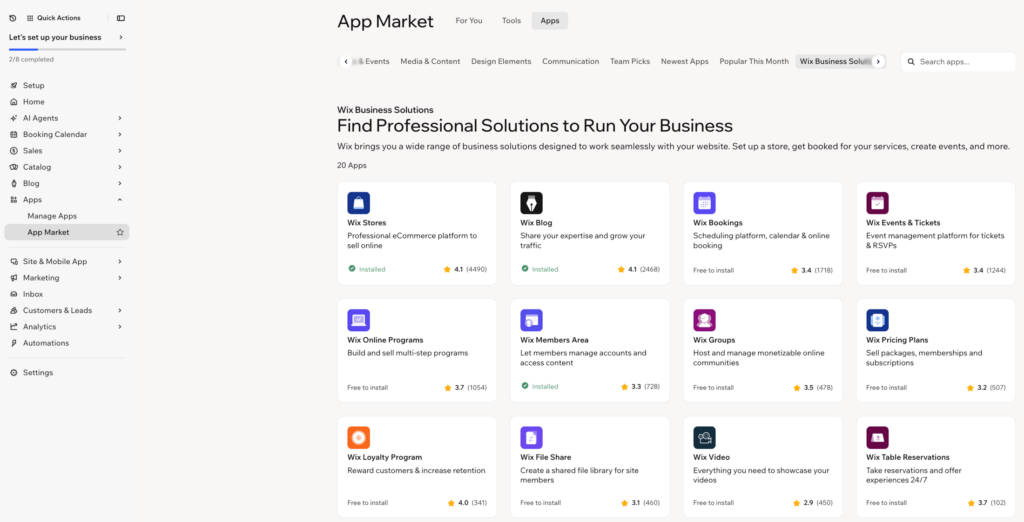
Installing one takes a few clicks: open the app’s page in the App Market, click Add to Site, and review the permissions. Some apps are free, some have a free plan, and some are paid, so check each listing before you commit.

Here’s a quick look at the 16 apps covered below:

#AppWhat it doesType
1Wix StoresCore online store toolsApp Market
2ModalystDropshipping and print on demandApp Market
3Amazon with WixSell on Amazon from your Wix dashboardBuilt in
4ShipStationMulti-channel shipping and ordersApp Market
5ShippoCarrier rates and shipping labelsApp Market
6Wix PaymentsCards and digital wallets at checkoutBuilt in
7AvalaraSales tax automationApp Market
8QuickBooks OnlineAccounting syncApp Market
9KlaviyoEmail and SMS marketing automationApp Market
10Wix Loyalty Program and Referral ProgramRepeat purchases and word of mouthApp Market
11AI Product ImagesStudio-quality product photosApp Market
12Rise.aiGift cards, store credit, and cashbackApp Market
13Blocky Fraud FilterBlock suspicious visitorsApp Market
14Wix AnalyticsSales and traffic reportsBuilt in
15TWIPLAHeatmaps and session recordingsApp Market
16UCP AdapterLets AI shopping agents buy from your storeApp Market

Core Store and Product Sourcing Apps

These three decide what you sell and where you sell it.

1. Wix Stores

Wix Stores is the foundation of every Wix ecommerce site. It handles your product catalog, inventory, checkout, discounts, tax and shipping rules, and order management in one dashboard. Wix also builds in AI tools for product descriptions, images, and product recommendations, plus abandoned cart recovery.

It supports physical products, digital products, services, and more from a single backend, so you can start simple and expand later.

Best for: every Wix store. If you want to sell, this is the one you can’t skip. See the Wix online store builder to get started.

2. Modalyst

Modalyst is Wix’s native dropshipping solution, and it’s how most new Wix sellers fill their store without buying inventory. It connects you to a marketplace of vetted suppliers and hundreds of thousands of ready-to-sell products, and it supports both dropshipping and print on demand. When a customer orders, you pay the supplier and they ship directly to your customer.

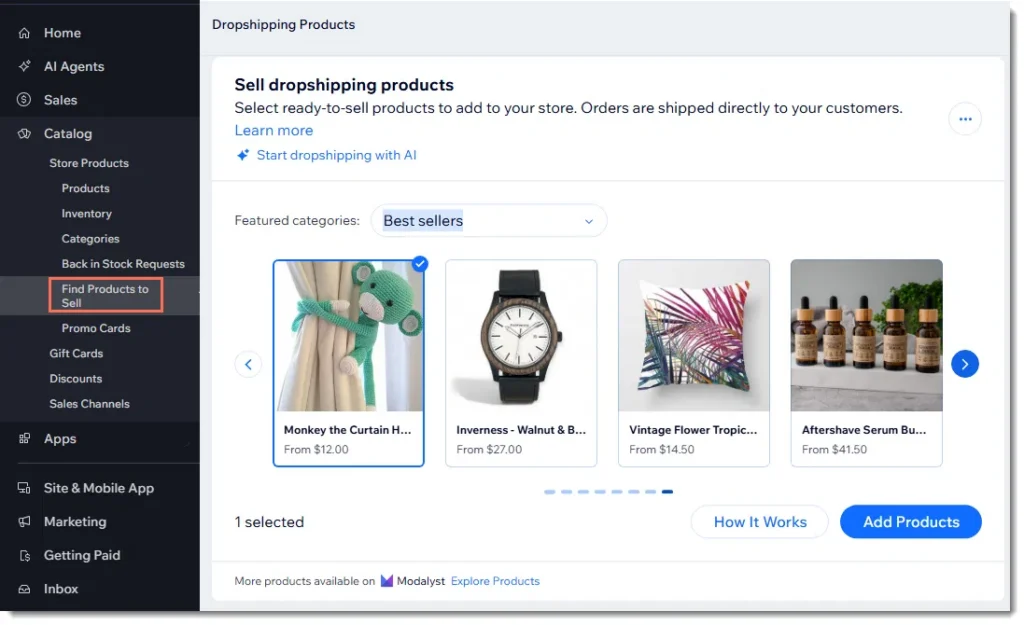
You can add Modalyst products two ways. From your Wix dashboard, go to Catalog → Store Products → Find Products to Sell, pick products, and add them. Or install the Modalyst app and browse the full catalog with search and filters. Products come with images, descriptions, and variants, and inventory and prices stay in sync with your store.
Modalyst App Wix Products

Best for: launching a store with no upfront inventory. Follow our step-by-step guide to start a Wix dropshipping store with Modalyst, or add Modalyst to your Wix store today.

3. Amazon with Wix

Amazon with Wix lets you list your products on Amazon and reach its shoppers from your Wix dashboard, according to its App Market listing. It’s a built-in option, and it’s one example of Wix’s multichannel selling tools, which help you sell beyond your own website.

Best for: stores that want a second sales channel without managing another platform. Keep your own site growing too with the built-in Wix SEO tools.


Shipping and Fulfillment Apps

Dropshipping suppliers ship your Modalyst orders for you. If you also sell your own stock, or want more control over rates and labels, add one of these.

4. ShipStation

ShipStation pulls orders from multiple channels into one place and lets you customize delivery options for your customers. It also has advanced features suited to sellers with large order volumes.

Best for: growing stores that sell on several channels and ship a lot of orders.

5. Shippo

Shippo connects you to a large network of carriers, including UPS, USPS, and FedEx. You can print shipping labels, send tracking codes, and sync with other apps and marketplaces. Small businesses may find it a more affordable option than heavier shipping platforms.

Best for: small stores that want simple labels and carrier rates.


Payments, Tax, and Accounting Apps

A smooth checkout turns browsing into revenue, and good back-office tools keep you out of trouble.
6. Wix Payments

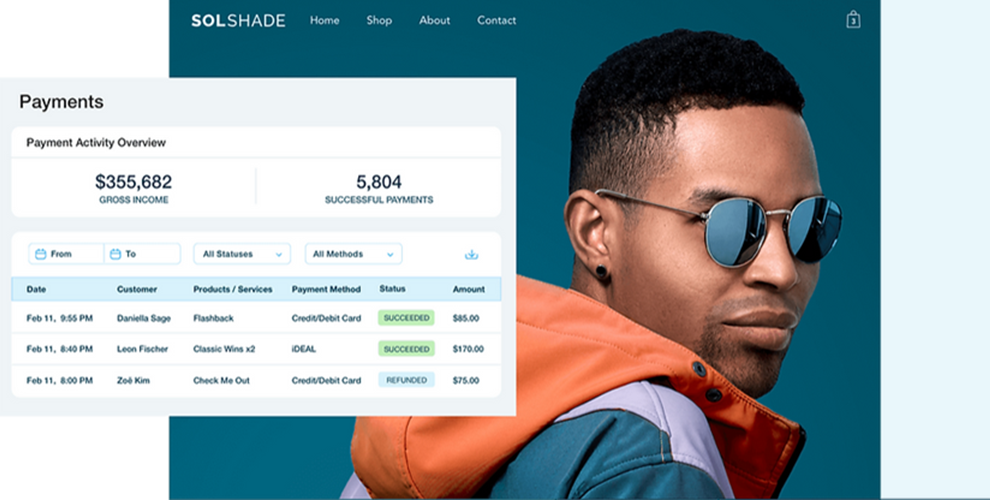
Wix Payments is built into the platform, so you can accept cards and digital wallets and go live quickly once your site is published. Wix also supports 80+ payment gateways if you’d rather use another provider, such as PayPal or Stripe.

Best for: getting paid on day one without installing anything. Remember that accepting payments requires a Wix Premium plan, so compare Wix plans before you launch.

7. Avalara

Avalara automates sales tax. It helps you identify where you have tax obligations, brings together data from your sales channels, and saves time when you file returns and track deadlines.

Best for: stores selling in multiple states or regions, where tax rules get complicated fast.

8. QuickBooks Online

The QuickBooks Online app is listed in the App Market’s accounting category and connects your store with your books, so income and orders don’t need to be re-entered by hand. Browse the other options in the Wix App Market accounting category.

Best for: store owners who want cleaner books and easier tax time.

Marketing and Conversion Apps

These apps bring shoppers back and make your products look better.

9. Klaviyo

Klaviyo is a marketing automation platform focused on email and SMS. It also works as a customer data platform, so you can segment audiences, view predictive analytics, and run targeted campaigns using your store data. Wix’s built-in email marketing is a good place to start, and Klaviyo is a strong upgrade when you need deeper automation.

Best for: stores with a growing customer list that want automated flows. Our post on email marketing for dropshipping businesses shows how to use it.

10. Wix Loyalty Program and Referral Program

The Wix Loyalty Program rewards customers to boost retention, and the Wix Referral Program helps you win new customers through word of mouth. Both are free to install according to their App Market listings. Repeat buyers cost far less to win than new ones, which matters when you’re working with dropshipping margins.

Best for: stores with products people reorder or recommend. Find both in the Wix App Market.

11. AI Product Images

AI Product Images generates product images, studio-style photos, and backgrounds. If you sell supplier products, polished and consistent images help your store look unique instead of generic. It has a free plan, so you can test it before paying.

Best for: dropshippers who want better visuals without a photo shoot.

12. Rise.ai

Rise.ai is a Verified by Wix app for gift cards and store credit. When you install it, it syncs with your existing Wix gift cards and adds tools like bulk gift card issuing, expiration reminders, and performance metrics. It also lets you offer cashback on purchases, refund orders as store credit instead of cash, and issue one-click compensation for problems like late shipping or order mix-ups. Each customer gets one digital wallet, and a growing balance gives them a reason to come back and spend it.

That makes it handy for dropshipping stores, where the occasional return or delayed order is normal and you’d rather keep the revenue in your business. It works with Wix Stores, offers a 30-day free trial, and has paid plans based on how many store credit issues you make each month.

Best for: stores that handle returns or want to bring customers back with cashback and gift cards.

Store Protection Apps

13. Blocky Fraud Filter

Blocky Fraud Filter works as a firewall, with a visitors map and IP blocker, so you can stop suspicious traffic. It’s a good low-effort layer of protection as your order volume grows.

Best for: stores that notice suspicious orders or unusual traffic.

Analytics and Growth Apps

You can’t improve what you can’t see.

14. Wix Analytics

Wix Analytics is available with any Wix plan. It shows your best-selling products and most-visited pages, when customers are most active, where they come from, and how fast your site loads based on real visitor data.

Best for: every store. It’s the first place to look when you’re deciding what to promote or fix.

15. TWIPLA

TWIPLA, formerly Visitor Analytics, adds heatmaps, session recordings, and behavioral data to show how shoppers move through your store. It’s built around cookie-free tracking, which can make privacy compliance easier.

Best for: stores that want to see where shoppers get stuck at product pages and checkout.

16. UCP Adapter

UCP Adapter is one of the newest apps in the App Market, designed to get your site ready for agentic commerce by letting AI agents buy from your store. As more shoppers use AI assistants to discover products, apps like this could matter. It’s brand new, so read the listing and reviews carefully before installing.

Best for: early adopters who want to be ready for AI-driven shopping.

Which Wix Apps Should You Add First?

You don’t need all 16 on day one. A simple order that works for most new stores:

  • Before launch: Wix Stores, Modalyst, and Wix Payments. This gets you products, a storefront, and a way to get paid. Pick a domain with Wix domain registration and build your design with the AI website builder.
  • After your first sales: a shipping app if you ship your own products, plus Avalara or QuickBooks Online for tax and books.
  • As you grow: Klaviyo, a loyalty program, and analytics tools like Wix Analytics and TWIPLA.

Wix’s free business tools, including a logo maker and a landing page builder, can also help you launch and promote your brand without adding more apps.

Tips for Choosing Wix Apps

  • Add one app at a time so you can tell what’s helping and what isn’t.
  • Check pricing and free plans on the App Market listing, since they can change.
  • Read recent reviews and look for apps marked as verified or recommended by Wix.
  • Remove apps you don’t use to keep your store simple.
  • Start with built-in tools when they do the job. Wix’s native features are already integrated with your store.

For a wider look at ecommerce software across categories, see Wix’s list of 28 best ecommerce tools.

Frequently Asked Questions

What are the best Wix apps for ecommerce?

For most stores, the best Wix apps are Wix Stores for selling, Modalyst for dropshipping, Wix Payments for checkout, a shipping app like ShipStation or Shippo, Avalara for tax, Klaviyo for email and SMS, and Wix Analytics for reporting.

Are Wix apps free?

Some are free to install, some have free plans, and others charge a monthly fee. Always check the pricing on the App Market listing before you add one, and remember that accepting payments on your site requires a Wix Premium plan.

How do I add an app to my Wix store?

Open the app’s page in the Wix App Market, click Add to Site, review the permissions, and follow the setup steps. Some apps, such as Modalyst, can also be reached from your Wix dashboard.

What is the best Wix app for dropshipping?

Modalyst is Wix’s native dropshipping solution. It gives you a marketplace of vetted suppliers and ready-to-sell products, and orders ship directly to your customers. Learn how it works in our guide to Wix dropshipping with Modalyst.

Do I need a lot of apps to run a Wix store?

No. Wix already includes a lot of built-in ecommerce tools, so many stores start with just a few apps and add more as they grow.

Key Takeaways

  • Wix includes strong built-in ecommerce tools, and the App Market fills in the gaps.
  • Start with Wix Stores, Modalyst, and Wix Payments, then add shipping, tax, email, and analytics apps as you grow.
  • Add apps one at a time, check pricing and reviews, and remove what you don’t use.

Ready to fill your store? Add Modalyst to your Wix store to start dropshipping, or learn more about dropshipping with Wix.
How to Start a Wix Dropshipping Store with Modalyst


To start a Wix dropshipping store with Modalyst, you use the leading website builder, Wix, to build your site, connect Modalyst (the Wix dropshipping app) either from your Wix dashboard or the Wix App Market, add ready-to-sell products, set your pricing and shipping, and publish. When a customer orders, you pay the supplier and they ship the product directly to your customer. You never hold inventory.

This guide walks you through every step in order, including the two ways to connect Modalyst, how pricing and shipping really work, and how to fulfill orders. It’s written for first-time store owners, but it’s useful if you already run a Wix site and want to add dropshipping.

Wix website builder
Wix is the website builder behind your storefront. Modalyst supplies the products.


Quick Answer: Build your store with the Wix website builder, then connect Modalyst by going to Catalog → Find Products to Sell in your Wix dashboard or by adding the Modalyst app from the Wix App Market. Select products, set your prices, create shipping rules, and publish. Modalyst suppliers ship every order directly to your customers.

What Is Wix Dropshipping with Modalyst?

Dropshipping is a way to sell online without buying or storing stock. You list products, a customer buys them from your store, and a supplier ships the order straight to the customer. You only pay the supplier after you’ve made a sale.

<

Modalyst is Wix’s native dropshipping solution. It connects your Wix store to a marketplace of vetted suppliers, including brand-name and US-based vendors, and gives you hundreds of thousands of ready-to-sell products. Because it’s built for Wix, products, inventory, and orders flow between the two platforms without spreadsheets or manual uploads.

Here’s why this pairing works well for new sellers:

  • No inventory risk. You don’t pay for products until a customer buys one.
  • One place to manage everything. Your storefront, payments, orders, and marketing tools all live in Wix.
  • Fast launch. Products arrive with images, descriptions, and variants already filled in.
  • Room to grow. You can mix Modalyst products with your own, and add print on demand later.

Two Ways to Connect Modalyst to Wix

Wix now offers two paths. Both end with Modalyst products in your store, so pick based on how much control you want up front.


Wix dashboard

Modalyst app

Where you work

Inside your Wix dashboard

The Modalyst dashboard

How you find products

AI-suggested products based on your industry, plus categories

Full Ready to Sell marketplace with search and filters

Pricing setup

Preset: default markup is 1.67x what you pay. You can edit it with pricing rules

You set pricing rules and per-product prices in Modalyst

Shipping

Shipping is added to the cost of goods automatically

You create shipping rules in your Wix dashboard

New products

Added as hidden until you unhide them

Added live when you click Add to Store

Best for

Launching fast with sensible defaults

Deep customization and bulk imports

You can start with one and use the other later. Steps 3A and 3B below cover each path.

Step 1: Build Your Wix Store

Start by creating the storefront your customers will see. If you don’t have a site yet, the Wix website builder lets you design one with drag-and-drop tools or by describing your business to the AI website builder.

  1. Choose an online store template that fits your niche, or let AI generate a starting point.
  2. Customize your layout, colors, and images in the editor.
  3. Pick a name and register your domain so your store looks professional from day one. Stuck on a name? Try the business name generator.

Building and designing your site is free. You’ll need a Wix Premium plan when you’re ready to accept payments, so compare Wix plans before you launch. If you’re ready to begin, you can start your free store with the Wix online store builder and come back here to add products.

Step 2: Choose How You’ll Connect

Decide between the Wix dashboard and the Modalyst app using the table above. If you’re brand new, the Wix dashboard is the simplest start. If you want to browse the whole catalog and customize in detail, add the app.

Modalyst App Wix Products

Step 3: Add Modalyst Products from Your Wix Dashboard

  1. In your Wix dashboard, go to Catalog → Find Products to Sell.
  2. Browse the featured categories, such as Best sellers, and select the products you want. Wix uses AI to suggest items based on your industry and shopper click behavior.
  3. Click Add Products, then click Add Products again to confirm.
  4. Your new products are added as hidden. When you’re ready to show them in your live store, unhide them.

Products arrive with optimized settings, so you can start selling right away. You can still edit titles, descriptions, and prices whenever you like.

Connect the Modalyst App

If you prefer the Modalyst dashboard, connect the Modalyst app first.

  1. Open the Modalyst page in the Wix App Market and click Add to Site.
  2. Review the permissions and click Add to Site again. 
  3. Choose Create a new account or Connect an existing account.
  4. Head to Modalyst to start adding products.

Modalyst App Wix Products

One Modalyst account connects to one Wix site. If your account is already linked to another site, create a second Modalyst account or disconnect the first under Connect Your Store in the Modalyst dashboard. You can also get started on the Modalyst Wix integration page.

Step 4: Set Your Pricing

Pricing decides whether your store makes money, so set it before you publish.

If you added products from the Wix dashboard: each product comes with a suggested retail price, with a default markup of 1.67 times what you pay. For example, a product that costs you $10 would list at $16.70. Your cost of goods is the product price plus shipping, which makes it easy to offer free shipping without wrecking your margin. Change prices per product or create pricing rules from Products → More Actions. You can even set a rule so every price ends in .99.

If you use the Modalyst app: set pricing rules that apply a default markup across products, or override the price for a single product. General pricing rules update automatically when a supplier changes a price. A price you set by hand does not, so check those from time to time. See the Modalyst guide to setting prices for your products.

Remember that your markup has to cover payment processing fees, ads, and any returns, not just the supplier’s cost.

Step 5: Set Up Shipping

Each Modalyst supplier decides which regions it ships to and what it charges, based on the customer’s location and where the product ships from. A few things to know:

  • Dashboard products: shipping is automatically included in the cost of goods. Your store’s existing shipping rules also apply to dropshipping products, and you can add a rate-by-product rule for a special dropshipping rate.
  • App products: supplier shipping rates don’t sync to your Wix store, so you’ll create shipping rules in your Wix dashboard. Use the supplier’s rates and destinations as your guide. You can charge for shipping or build the cost into the price and offer free shipping.
  • Shipping isn’t part of the item cost. It’s a separate amount you owe the supplier, shown on each product page and each order. To fold shipping into your prices, open Pricing Rules in Modalyst and click Add next to Shipping Rate.

While you shop, set your primary customer location on your Modalyst Store Profile page. That shows you realistic shipping rates for the region you sell to most. Learn more in how shipping works on Modalyst.

Step 6: Find, Customize, and Add Products

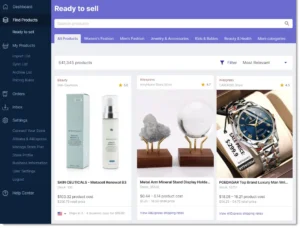
Open the Ready to sell tab in Modalyst to browse the catalog. Each card shows the supplier, rating, stock, your product cost, and the suggested retail price. Some products show shipping times, such as US shipping in 3 to 4 business days. Use the category tabs and Filter to narrow your search.

When you find a product you like:

  1. Click More Details to review the description, variants, and the Shipping tab.
  2. Click Add to Import List. The product isn’t in your store yet.
  3. Open the Import List and customize it:
    • General: edit the product name (up to 80 characters) and choose your categories.
    • Description: rewrite the copy so it sounds like your brand.
    • Variants: match images to variants, edit SKUs, and hide variants you don’t want to sell.
    • Pricing: override your default rules if needed.
    • Media: deselect images you don’t want to show.
  4. Click Add to Store. The product appears in your Wix Products tab and goes live. To add several at once, select multiple products and use Add to store.

Products usually show up in your store right away, though items with lots of images can take a few minutes.

Order a sample first. Some suppliers let you buy a sample so you can check quality before you sell. In the Import List, open a product, click More details, then Order a sample.

Not sure what to sell? Read Wix’s guide to dropshipping suppliers and how to start a dropshipping business for niche and product ideas. When you’re ready to stock your shop, add dropshipping to your Wix store and start adding products today.

How Inventory and Prices Stay in Sync

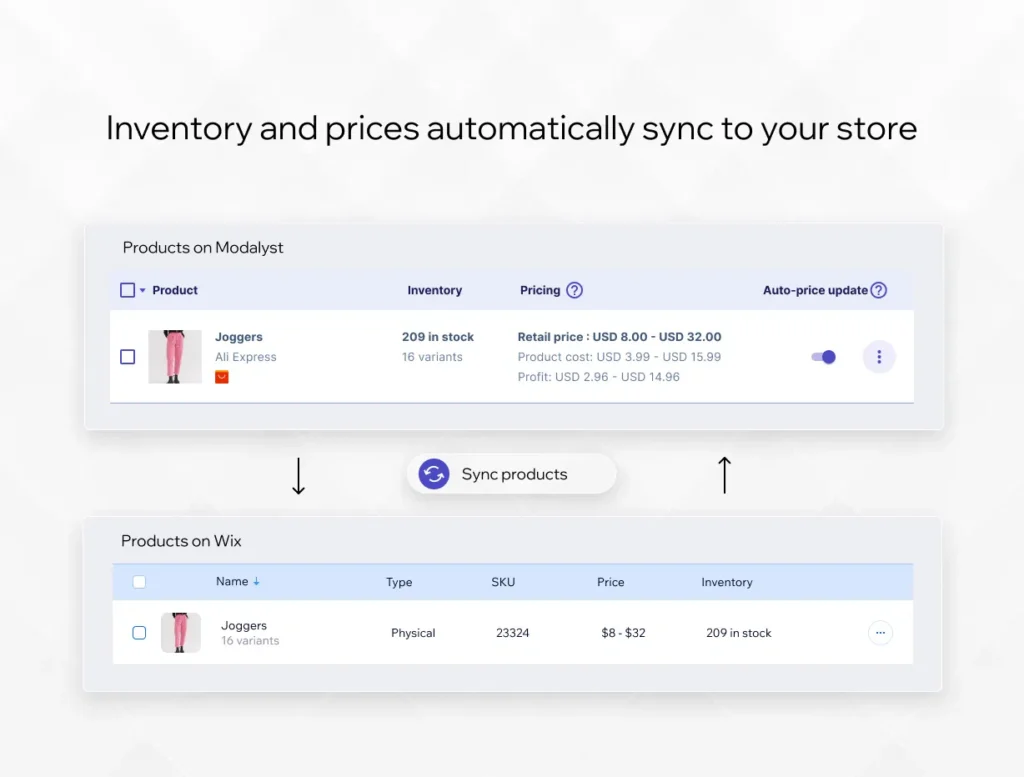
Once products are in your store, Modalyst keeps them current. Inventory and prices sync between Modalyst and your Wix store, so you don’t have to update stock counts by hand.

In the example above, a joggers listing in Modalyst shows 209 in stock across 16 variants, a retail price range, product cost, and projected profit. The same product in Wix shows the matching price range and inventory. If a supplier discontinues a product, Modalyst emails you.

Step 7: Launch Your Store

Before you publish, run through this checklist:

  • Unhide any products you added from the Wix dashboard.
  • Check that product names, descriptions, and images look right on mobile.
  • Confirm your shipping rules and prices.
  • Set up payments and upgrade to a Wix Premium plan.
  • Connect your domain.
  • Make sure every product follows Wix’s terms of use.

Then publish your site and start driving traffic with Wix’s built-in SEO tools and marketing features. For selling beyond your own site, see Wix sales channels.

Step 8: Fulfill Your First Order

When a customer buys a Modalyst product, you pay the supplier and they ship it.

  1. In your Wix dashboard, go to Orders and open the order.
  2. Click Go to Modalyst.
  3. Pay the supplier for the order.

After you pay, the supplier ships the order to your customer. A shipping confirmation email with the tracking number goes out under your store’s brand, and the carrier, tracking number, and tracking link are added to the order in your Wix dashboard automatically.

If a customer buys both your own products and Modalyst products in one order, fulfill your own items the usual way.

Modalyst Plans and Product Limits

How many products you can list depends on your Modalyst plan, according to the Wix Help Center:


Plan

Product limit

Hobby

Up to 25 products

Start-Up

Up to 250 products

Pro

Unlimited products


Check Modalyst for current plan details and upgrade options when your catalog grows.

Frequently Asked Questions

Is the Modalyst app free to add to a Wix site?

Adding the app and connecting an account is quick and doesn’t require inventory. Your product limit depends on your Modalyst plan, from 25 products on Hobby to unlimited on Pro. Building your Wix site is free, but you’ll need a Wix Premium plan to accept payments.

Do I pay for products before I sell them?

No. You pay the supplier only after a customer orders from your store. That’s what keeps dropshipping low-risk.

Who handles shipping and returns?

Suppliers ship directly to your customers. Modalyst suppliers offer a 14-day return policy, meaning they accept returns up to 14 days after the customer receives the product, and in most cases they’ll provide a refund. See the Modalyst returns FAQ.

Can I sell my own products alongside Modalyst products?

Yes. You can add your own physical products to the same Wix store.

Can I use Modalyst in a non-English store?

Modalyst itself is English-only, but you can translate product names, descriptions, and variant names in the Import List before adding them to your store.

How do I collect sales tax on dropshipped products?

Tax rules depend on where you and your customers are. Start with this overview of sales tax and dropshipping, and talk to a tax professional.

Key Takeaways

  • Build your store with the Wix website builder, then connect Modalyst through the Wix dashboard or the Modalyst app.
  • Set pricing and shipping before you publish. The default dashboard markup is 1.67x, and app shipping rates need Wix shipping rules.
  • Customize products in the Import List, order samples, then add them to your store.
  • When an order comes in, pay the supplier from your Wix Orders page and they ship directly to your customer.

Ready to launch? Add dropshipping to your Wix store with Modalyst, or learn more about dropshipping with Wix.