

To start a Wix dropshipping store with Modalyst, you use the leading website builder, Wix, to build your site, connect Modalyst (the Wix dropshipping app) either from your Wix dashboard or the Wix App Market, add ready-to-sell products, set your pricing and shipping, and publish. When a customer orders, you pay the supplier and they ship the product directly to your customer. You never hold inventory.
This guide walks you through every step in order, including the two ways to connect Modalyst, how pricing and shipping really work, and how to fulfill orders. It’s written for first-time store owners, but it’s useful if you already run a Wix site and want to add dropshipping.

Wix is the website builder behind your storefront. Modalyst supplies the products.
Quick Answer: Build your store with the Wix website builder, then connect Modalyst by going to Catalog → Find Products to Sell in your Wix dashboard or by adding the Modalyst app from the Wix App Market. Select products, set your prices, create shipping rules, and publish. Modalyst suppliers ship every order directly to your customers.
What Is Wix Dropshipping with Modalyst?
Dropshipping is a way to sell online without buying or storing stock. You list products, a customer buys them from your store, and a supplier ships the order straight to the customer. You only pay the supplier after you’ve made a sale.
<
Modalyst is Wix’s native dropshipping solution. It connects your Wix store to a marketplace of vetted suppliers, including brand-name and US-based vendors, and gives you hundreds of thousands of ready-to-sell products. Because it’s built for Wix, products, inventory, and orders flow between the two platforms without spreadsheets or manual uploads.
Here’s why this pairing works well for new sellers:
- No inventory risk. You don’t pay for products until a customer buys one.
- One place to manage everything. Your storefront, payments, orders, and marketing tools all live in Wix.
- Fast launch. Products arrive with images, descriptions, and variants already filled in.
- Room to grow. You can mix Modalyst products with your own, and add print on demand later.
Two Ways to Connect Modalyst to Wix
Wix now offers two paths. Both end with Modalyst products in your store, so pick based on how much control you want up front.
Wix dashboard | Modalyst app | |
|---|---|---|
Where you work | Inside your Wix dashboard | The Modalyst dashboard |
How you find products | AI-suggested products based on your industry, plus categories | Full Ready to Sell marketplace with search and filters |
Pricing setup | Preset: default markup is 1.67x what you pay. You can edit it with pricing rules | You set pricing rules and per-product prices in Modalyst |
Shipping | Shipping is added to the cost of goods automatically | You create shipping rules in your Wix dashboard |
New products | Added as hidden until you unhide them | Added live when you click Add to Store |
Best for | Launching fast with sensible defaults | Deep customization and bulk imports |
You can start with one and use the other later. Steps 3A and 3B below cover each path.
Step 1: Build Your Wix Store
Start by creating the storefront your customers will see. If you don’t have a site yet, the Wix website builder lets you design one with drag-and-drop tools or by describing your business to the AI website builder.
- Choose an online store template that fits your niche, or let AI generate a starting point.
- Customize your layout, colors, and images in the editor.
- Pick a name and register your domain so your store looks professional from day one. Stuck on a name? Try the business name generator.
Building and designing your site is free. You’ll need a Wix Premium plan when you’re ready to accept payments, so compare Wix plans before you launch. If you’re ready to begin, you can start your free store with the Wix online store builder and come back here to add products.
Step 2: Choose How You’ll Connect
Decide between the Wix dashboard and the Modalyst app using the table above. If you’re brand new, the Wix dashboard is the simplest start. If you want to browse the whole catalog and customize in detail, add the app.
Step 3: Add Modalyst Products from Your Wix Dashboard
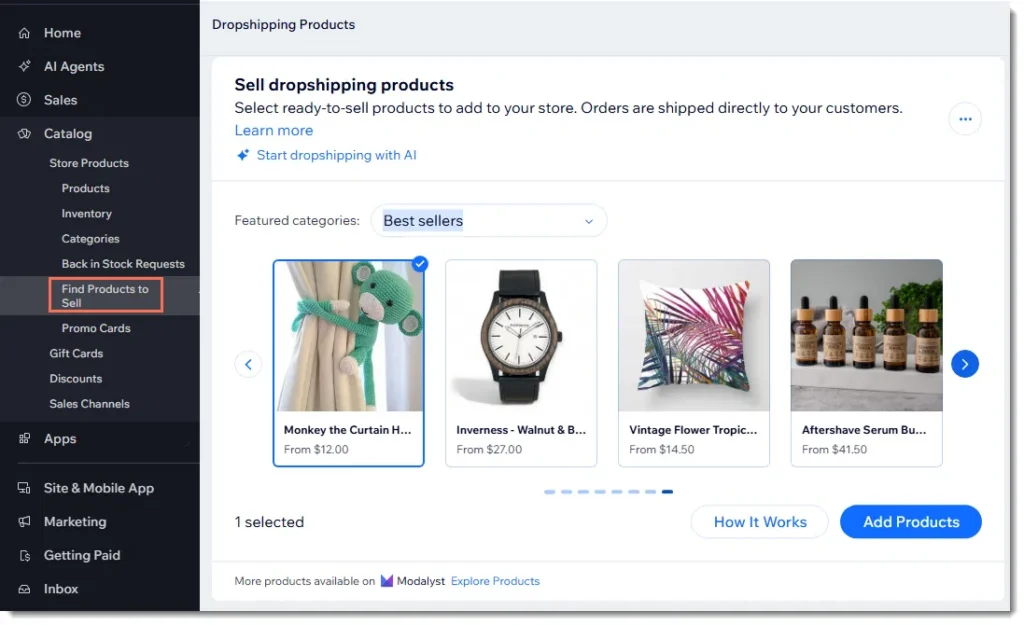
- In your Wix dashboard, go to Catalog → Find Products to Sell.
- Browse the featured categories, such as Best sellers, and select the products you want. Wix uses AI to suggest items based on your industry and shopper click behavior.
- Click Add Products, then click Add Products again to confirm.
- Your new products are added as hidden. When you’re ready to show them in your live store, unhide them.
Products arrive with optimized settings, so you can start selling right away. You can still edit titles, descriptions, and prices whenever you like.
Connect the Modalyst App
If you prefer the Modalyst dashboard, connect the Modalyst app first.
- Open the Modalyst page in the Wix App Market and click Add to Site.
- Review the permissions and click Add to Site again.
- Choose Create a new account or Connect an existing account.
- Head to Modalyst to start adding products.
One Modalyst account connects to one Wix site. If your account is already linked to another site, create a second Modalyst account or disconnect the first under Connect Your Store in the Modalyst dashboard. You can also get started on the Modalyst Wix integration page.
Step 4: Set Your Pricing
Pricing decides whether your store makes money, so set it before you publish.
If you added products from the Wix dashboard: each product comes with a suggested retail price, with a default markup of 1.67 times what you pay. For example, a product that costs you $10 would list at $16.70. Your cost of goods is the product price plus shipping, which makes it easy to offer free shipping without wrecking your margin. Change prices per product or create pricing rules from Products → More Actions. You can even set a rule so every price ends in .99.
If you use the Modalyst app: set pricing rules that apply a default markup across products, or override the price for a single product. General pricing rules update automatically when a supplier changes a price. A price you set by hand does not, so check those from time to time. See the Modalyst guide to setting prices for your products.
Remember that your markup has to cover payment processing fees, ads, and any returns, not just the supplier’s cost.
Step 5: Set Up Shipping
Each Modalyst supplier decides which regions it ships to and what it charges, based on the customer’s location and where the product ships from. A few things to know:
- Dashboard products: shipping is automatically included in the cost of goods. Your store’s existing shipping rules also apply to dropshipping products, and you can add a rate-by-product rule for a special dropshipping rate.
- App products: supplier shipping rates don’t sync to your Wix store, so you’ll create shipping rules in your Wix dashboard. Use the supplier’s rates and destinations as your guide. You can charge for shipping or build the cost into the price and offer free shipping.
- Shipping isn’t part of the item cost. It’s a separate amount you owe the supplier, shown on each product page and each order. To fold shipping into your prices, open Pricing Rules in Modalyst and click Add next to Shipping Rate.
While you shop, set your primary customer location on your Modalyst Store Profile page. That shows you realistic shipping rates for the region you sell to most. Learn more in how shipping works on Modalyst.
Step 6: Find, Customize, and Add Products
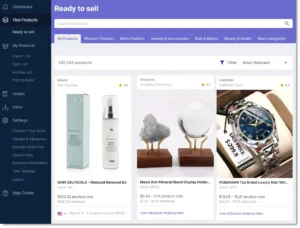
Open the Ready to sell tab in Modalyst to browse the catalog. Each card shows the supplier, rating, stock, your product cost, and the suggested retail price. Some products show shipping times, such as US shipping in 3 to 4 business days. Use the category tabs and Filter to narrow your search.
When you find a product you like:
- Click More Details to review the description, variants, and the Shipping tab.
- Click Add to Import List. The product isn’t in your store yet.
- Open the Import List and customize it:
- General: edit the product name (up to 80 characters) and choose your categories.
- Description: rewrite the copy so it sounds like your brand.
- Variants: match images to variants, edit SKUs, and hide variants you don’t want to sell.
- Pricing: override your default rules if needed.
- Media: deselect images you don’t want to show.
- Click Add to Store. The product appears in your Wix Products tab and goes live. To add several at once, select multiple products and use Add to store.
Products usually show up in your store right away, though items with lots of images can take a few minutes.
Order a sample first. Some suppliers let you buy a sample so you can check quality before you sell. In the Import List, open a product, click More details, then Order a sample.
Not sure what to sell? Read Wix’s guide to dropshipping suppliers and how to start a dropshipping business for niche and product ideas. When you’re ready to stock your shop, add dropshipping to your Wix store and start adding products today.
How Inventory and Prices Stay in Sync
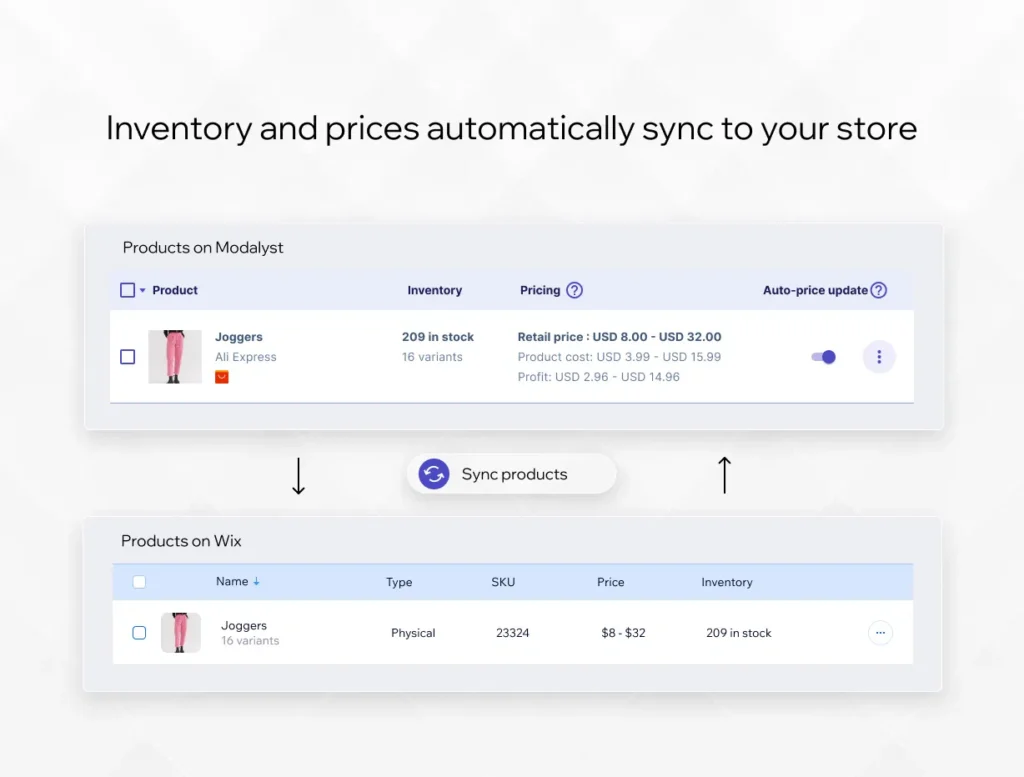
Once products are in your store, Modalyst keeps them current. Inventory and prices sync between Modalyst and your Wix store, so you don’t have to update stock counts by hand.
In the example above, a joggers listing in Modalyst shows 209 in stock across 16 variants, a retail price range, product cost, and projected profit. The same product in Wix shows the matching price range and inventory. If a supplier discontinues a product, Modalyst emails you.
Step 7: Launch Your Store
Before you publish, run through this checklist:
- Unhide any products you added from the Wix dashboard.
- Check that product names, descriptions, and images look right on mobile.
- Confirm your shipping rules and prices.
- Set up payments and upgrade to a Wix Premium plan.
- Connect your domain.
- Make sure every product follows Wix’s terms of use.
Then publish your site and start driving traffic with Wix’s built-in SEO tools and marketing features. For selling beyond your own site, see Wix sales channels.
Step 8: Fulfill Your First Order
When a customer buys a Modalyst product, you pay the supplier and they ship it.
- In your Wix dashboard, go to Orders and open the order.
- Click Go to Modalyst.
- Pay the supplier for the order.
After you pay, the supplier ships the order to your customer. A shipping confirmation email with the tracking number goes out under your store’s brand, and the carrier, tracking number, and tracking link are added to the order in your Wix dashboard automatically.
If a customer buys both your own products and Modalyst products in one order, fulfill your own items the usual way.
Modalyst Plans and Product Limits
How many products you can list depends on your Modalyst plan, according to the Wix Help Center:
Plan | Product limit |
|---|---|
Hobby | Up to 25 products |
Start-Up | Up to 250 products |
Pro | Unlimited products |
Check Modalyst for current plan details and upgrade options when your catalog grows.
Frequently Asked Questions
Is the Modalyst app free to add to a Wix site?
Adding the app and connecting an account is quick and doesn’t require inventory. Your product limit depends on your Modalyst plan, from 25 products on Hobby to unlimited on Pro. Building your Wix site is free, but you’ll need a Wix Premium plan to accept payments.
Do I pay for products before I sell them?
No. You pay the supplier only after a customer orders from your store. That’s what keeps dropshipping low-risk.
Who handles shipping and returns?
Suppliers ship directly to your customers. Modalyst suppliers offer a 14-day return policy, meaning they accept returns up to 14 days after the customer receives the product, and in most cases they’ll provide a refund. See the Modalyst returns FAQ.
Can I sell my own products alongside Modalyst products?
Yes. You can add your own physical products to the same Wix store.
Can I use Modalyst in a non-English store?
Modalyst itself is English-only, but you can translate product names, descriptions, and variant names in the Import List before adding them to your store.
How do I collect sales tax on dropshipped products?
Tax rules depend on where you and your customers are. Start with this overview of sales tax and dropshipping, and talk to a tax professional.
Key Takeaways
- Build your store with the Wix website builder, then connect Modalyst through the Wix dashboard or the Modalyst app.
- Set pricing and shipping before you publish. The default dashboard markup is 1.67x, and app shipping rates need Wix shipping rules.
- Customize products in the Import List, order samples, then add them to your store.
- When an order comes in, pay the supplier from your Wix Orders page and they ship directly to your customer.
Ready to launch? Add dropshipping to your Wix store with Modalyst, or learn more about dropshipping with Wix.